2018/08/08

7 Best Instant Messaging Apps for Android 2019


7 Best Instant Messaging Apps for Android 2019

There are tons of Messengers available for Android users but not all of them are Good and useful.


Although, Every Instant Messaging Application does the same job but there are those little extra and unique features that attracts the most. Instant Messaging Apps are free to use and download. You just need to activate Internet connection on your Android device to send texts, images, videos and other files via these beautiful Applications.

Whether you are new Android user or an old, If you are looking for Best Instant Messaging Apps to connect with your friends and family instantly without paying a single penny for that then this post will definitely help you choose a best Instant Messenger for your Android device.

Worth Reading: What is the Best Keyboard App for Android in 2018
Here are the 7 Best Instant Messaging Apps for Android :


WhatsApp


Skype


Messenger


Viber


Google Allo


Hike


Line
1. WhatsApp


WhatsApp Messenger is a free Instant Messaging App for Android. It is most popular of all and has crossed milestone of 1 billion downloads on Google Play. No doubt, WhatsApp remains on the top because of its simplicity, reliability and there is no need to sign up. Using WhatsApp, a user can initiate WhatsApp phone calls, send audios, videos, photos, locations, contacts and other document files. UI of WhatsApp is user-friendly. The developers have avoided big stickers, smileys and GIFs thus WhatsApp is quick and trap free.

It is must use IM App because your friends might already be using WhatsApp for texting each other.

Main Features :


Free Calls


Group Chat


Always Logged In


WhatsApp Web and more…
2. Skype


Skype is best for Video Calling. This App is mostly used for video calling purpose but its Instant Messaging ability can not be ignored. You will have to login before you can use any features offered by this App. Skype will let you make free Group video calls and voice calls. Features of Skype include instant messaging, group chatting, media/file sharing, video calling, emoji and more.

Skype is available for smartphones, PCs, tablets and Macs.

Main Features :


Free voice calls


Free video calls/ Group video calls


Group Chat


Call mobiles and landlines at low rates ( Skype to Skype calling is free ) and more…
3. Messenger


Messenger is Facebook’s official instant messaging App. The App has some faults or defects but still became one of the most popular messaging apps ever with more than 1bn installs. Messenger instantly connects you with your Facebook friends. Users can send messages, create groups for enabling group chatting, share photos and videos, initiate free calls and lot more.

Main Features :


Group chats


Chat heads


Free calls


Know when people have seen your messages and lot more…
4. Viber


Viber is another free messenger that keeps you connected with your friends through Internet connection (Wi-Fi or your data plan like every other messenger mentioned in this list). Users get freedom to connect with friends and family using instant messaging, voice calls or live video chats. Other than this Viber offers thousands of free and paid stickers and emoji icons.

Main Features :


Free voice or video calls


Hide chats


Group chat


No need for an username or login information and more…
5. Google Allo


Google Allo is another messaging app developed by Google. It has every typical mobile messaging features such as chat, photo messaging, stickers and emojis. Google Allo adds AI assistant functions like Cortana or Siri. Google Assistant will help you find restaurants nearby, share videos to watch, and get answers, right in your conversation with friends.

Main Features :


Google Assistant like Siri or Cortana


Incognito mode


SHOUT or whisper


Respond to messages without typing and couple more…
6. Hike


It is a great free Instant Messenger with every typical messaging features. Hike offline is one of the best feature ever which helps you when your friends do not have Internet connection active on their device. Allows users to hide all their private chats from the world and access them only with a password. With Hike, you can send nearly any media or document files.

Free hike to non-hike SMS ( Only for Indian users ).

Main Features :


Group chats


Free hike calling and video calling


Hike News


Hike offline ( Send SMS at no cost ) and lot more…
7. Line

Line is another popular Instant Messaging App and has over 600 million users worldwide. The features of line is similar to facebook and other messenger. Line users can send unlimited messages and also can make free voice and video calls. You can also post your day-to-day activities on your Timeline or comment on your friends’ posts.

Main Features :


Profile videos


Free voice and video calls


Group chats


Sticker Shop and few more…


Jihosoft Android Data Recovery is the most powerful and professional data recovery software for Android that can restore deleted or lost contacts, photos, videos, audios, SMS, call logs, WhatsApp chat, Viber messages from any Android devices due to accidental deletion, virus attack, formatting. It supports all popular Android smartphones and tablets like Samsung, HTC, LG, Huawei, Motorola, Nexus, etc. In the meantime, you will be guided step by step if you never used this kind of tool before.


Best Samsung Data Recovery Software:
Easily Recover Deleted/Lost Photos, Messages, Contacts, Call Logs, WhatsApp,
Musics, Videos etc. from All Samsung Devices


Must Check Out Posts:


The Best Ringtone Apps for Android


10 Solutions to Fix Windows 10 Does Not Recognize Android


Transfer WhatsApp Messages between Android and iPhone


Best Screen Recorder Apps for Android


How to Record WhatsApp Call on Android?


How to schedule WhatsApp Message on Android and iPhone


If you liked this article, don’t forget to share it with your friends on Facebook or Twitter.


Any app suggestions or topic recommendations are appreciated in the comments down below.


2018/08/03

How to Backup/Restore WhatsApp Chat Messages and Photos on iPhone and Android Device 2019 Guide


How to Backup/Restore WhatsApp Chat Messages and Photos on iPhone and Android Device

To get started, ensure that iCloud Drive is turned on for WhatsApp Backup. Open Settings app → Apple ID banner → iCloud → Turn on the switch next to iCloud Drive and then ensure that the switch next to WhatsApp is turned on.


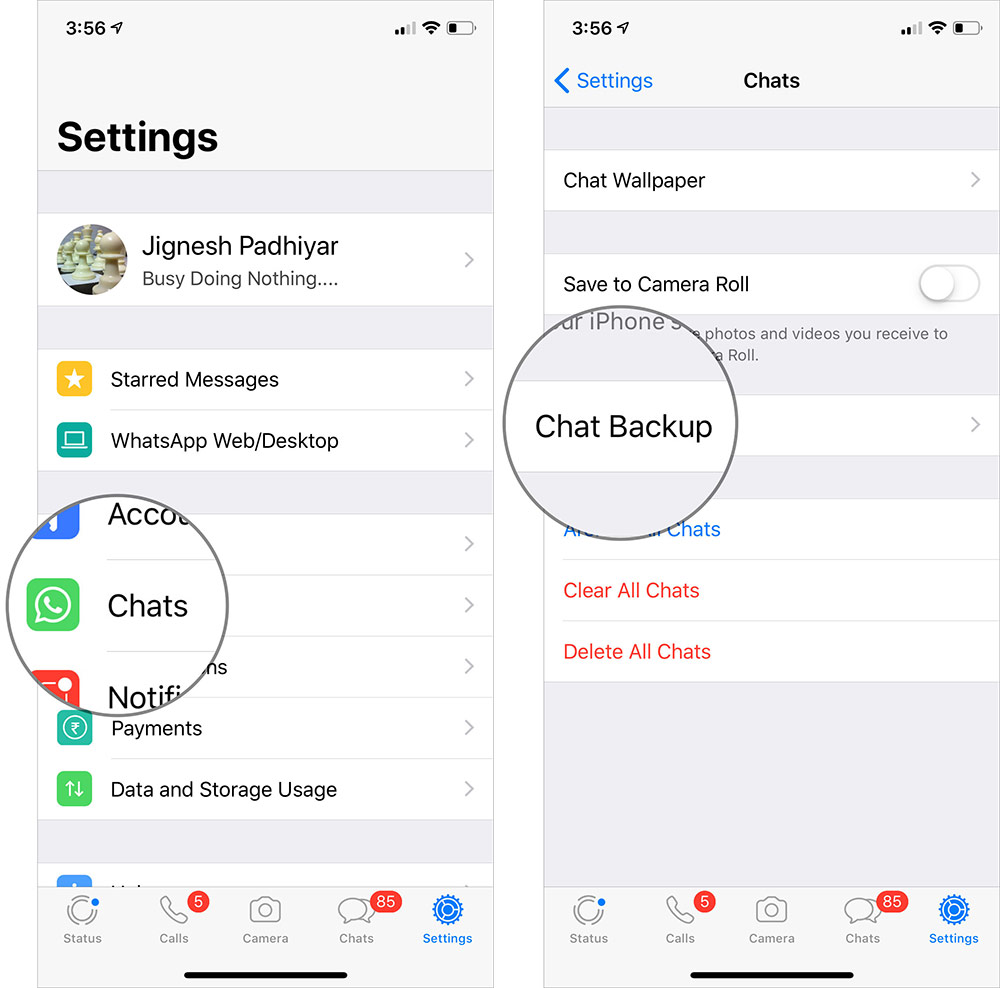
Step #1. Launch WhatsApp on your iPhone.


Step #2. Now, tap on Settings icon at the bottom right corner.


Note: On your Android device, tap on the menu button at the top right corner and select Settings.


Step #3. Next, tap on Chats and then hit Chat Backup.

Sponsor Ads:Image result for gihosoft iphone

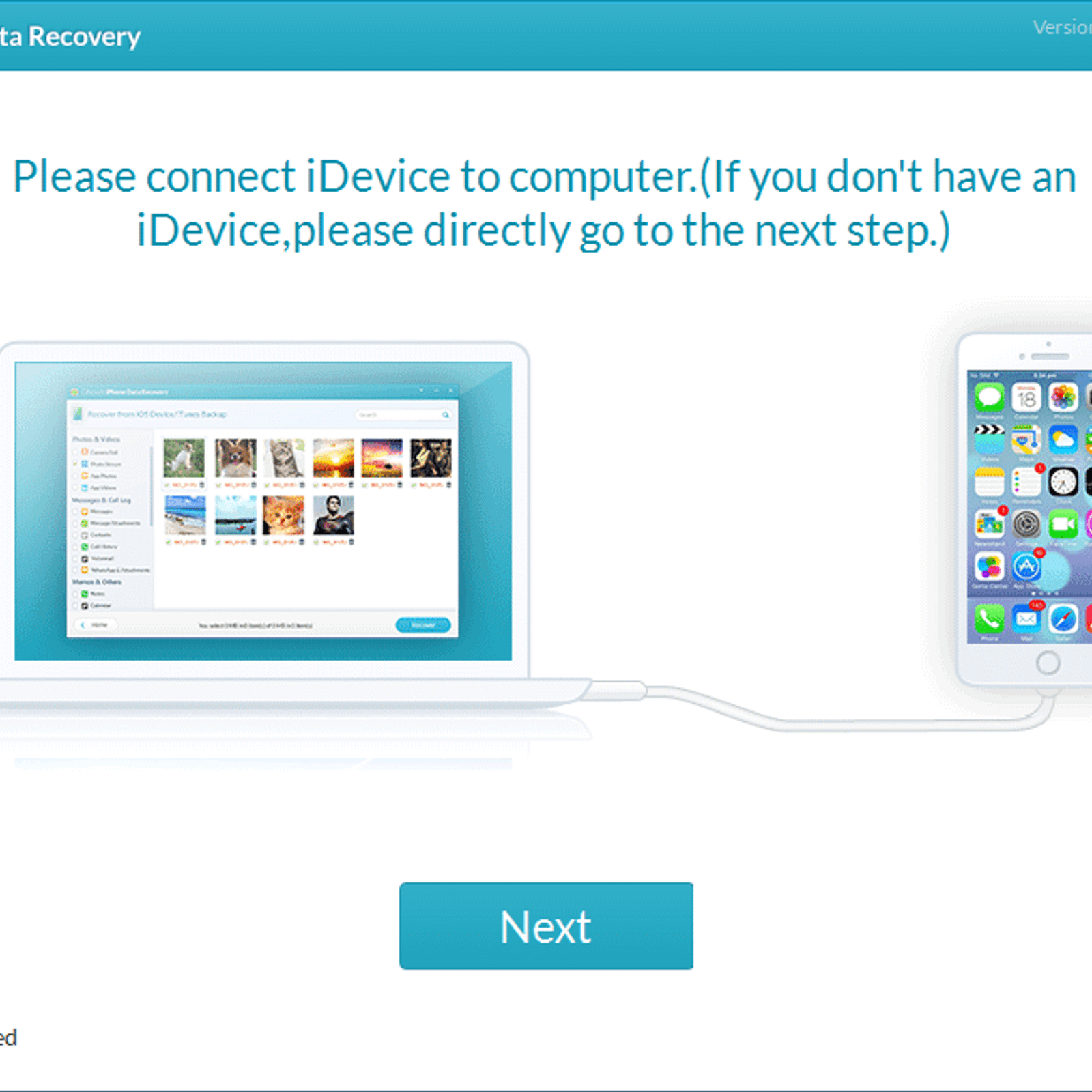
Gihosoft Free iPhone Data Recovery is a professional iPhone Data Recovery software to get back all your lost text message, photo, video, call history, note, contact and more from iPhone/iPad/iPod Touch. It offers a full solution to recover your lost data in different tough situations. Besides recovering data directly from iPhone, iPad and iPod touch, it also allows you to recover data from iCloud and iTunes backup files.

iPhone backup unlocker:Recover iTunes Backup Password.

iPhone backup extractor free:The best iPhone Backup Extractor software to extract photos, text messages, contacts, voice memos, note, WhatsApp, Viber and etc from iPhone/iPad backup.

Comment and win free lifetime registration code of Gihosoft Total Video Converter.

Youtube/Tumblr video downloader - Download Youtube/Tumblr video lets you convert and download Youtube/Tumblr to MP4 and MP3 for Free!


Step #4. Next up, you have the option to include videos in your backup. If you want to bring all of your sent/received clips onboard, make sure to turn on the switch next to Include Videos. Then, tap on Back Up Now.


Up next, let the app back up your chat history peacefully. The time it takes to get it done depends on the size of the file and the Internet speed.
Auto Back Up WhatsApp Chat History

If you don’t want to back up the chat history manually, go for the auto-backup option. You can choose to get it done daily, weekly or monthly. To do so, follow the same steps mentioned above and then tap on Auto-Backup. Next, select the preferred frequency.

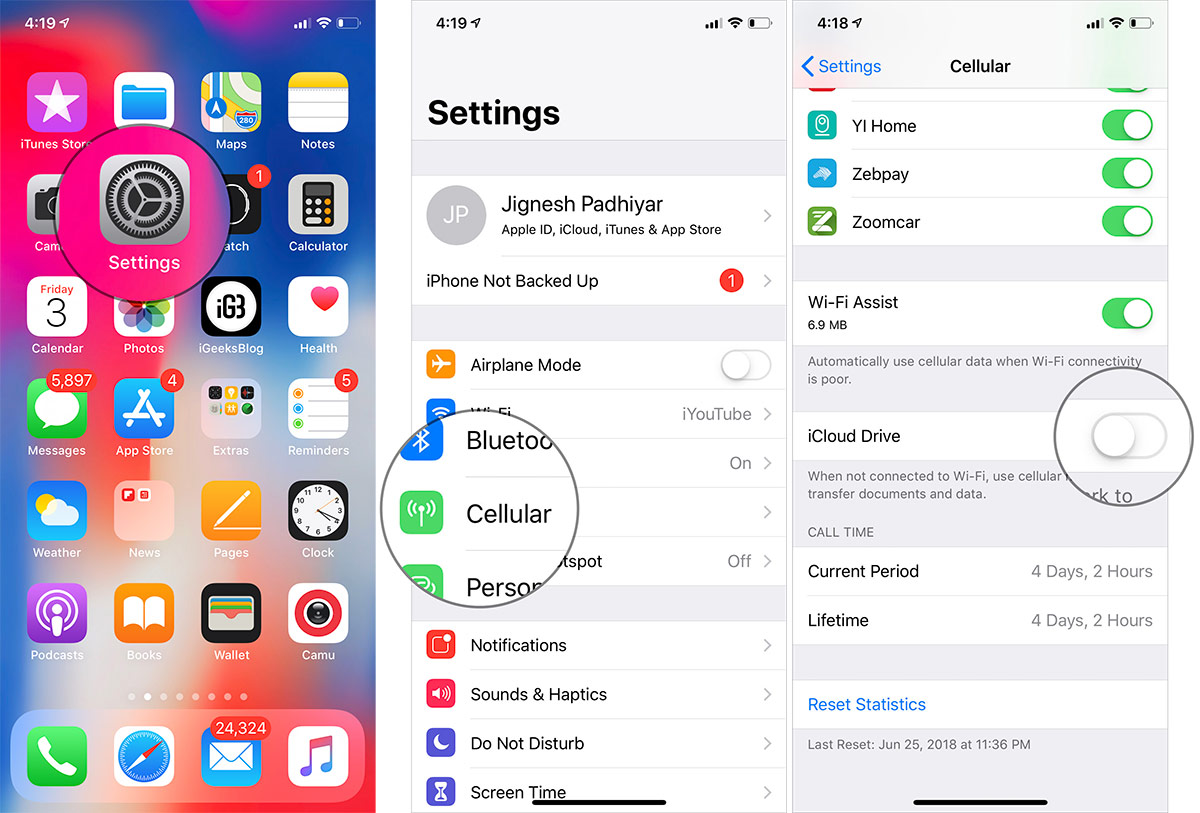
Tip: If you are on limited bandwidth or don’t want to use the cellular data to back up the chat, go to Settings app → Cellular → iCloud Drive and turn off the switch next to it. From now onwards, WhatsApp will use only your Wi-Fi to back up the data.


2018/07/12

5 Secrets for clicking the best iPhone X photographs 2018 Guide


As always Apple again took the hold of the market this year. We all know iPhone is the most gifted phone in the world. The new launches of iPhone 8, 8 plus, and X models have made massive sales and are being known for their amazing camera results. Though both iPhone 8 and 8 plus are loved by people, iPhone X is something next level due to its unique camera features.


iPhone X with face recognition, the missing main home button, and the camera features are making this smartphone way much popular than any other iPhone. Most people are still exploring the camera system of this device. All the pictures being clicked on this phone are exceptional and are being loved by the users! With this phone in hand, you can not only shoot pictures in Portrait mode, you can also expand portrait lighting, and utilize the completely remodeled back camera.
Related:


Inbox by Gmail acquires iPhone X support


10 best iPhone security apps in history


To help you shoot some really gorgeous pictures with your iPhone X, I have compiled these 5 secrets to take the best looking photos with your amazing phone. To find out these secrets, keep reading:
1: Zooming option in the Dark


I love this upgrade on iPhone X. It has made taking pictures in dark so much easier. Now you have the 2x lens in it, it works in low light. You can use both the lenses, no matter what are the lighting situations; your picture quality won’t be compromised.
2: Brighten any Scene with Flash


Usually, smartphone flashes are very harsh but Apple has introduced a new flash technology named as Slow Sync that shoots very beautiful and soft images by utilizing the phone’s innovative Quad-LED flash. It is suggested that this flash should be used in dim restaurants or after a sunset for best results.
3: Live Photo Effects


When you shoot live photos or a small video, it’s not completely a new feature that iPhone X has included, you will have a set of really nice effects using this superb technology. For example, like the DSLR camera features you can blur your background, generate a continuous Loop, or create a Boomerang which is very popular these days.
4: Portrait Modes


The Apple company made major developments in the portrait mode. The new iPhone X camera features just not have portrait mode with blurred backgrounds, it also has 5 new lighting modes for portraits, which includes natural light, contour light, studio light, stage lights and mono light (for black and white stage like photos). So, If you want to highlight your subjects, the photography level is up for you!If you accidentally deleted or lost videos on iPhone, first please check on the Recently Deleted folder. Alternatively, you can use the professional tool Gihosoft iPhone Recovery to recover deleted iPhone videos from Camera Roll or some apps.


5. Play with Burst Mode


For taking the best pictures, especially when you are traveling utilize the burst mode. You can shoot 10 photos per second with this outstanding burst mode of iPhone X. To utilize this camera feature, just hold the shutter icon for a while in your camera application. Sometimes photography is about shooting a short-lived moment.
6. How can we forget Video Modes?


There are various iPhone video modes that you can enjoy, exclusively when you are shooting a scene where this is some interesting movement or sound.


If you would like to capture something like clouds moving slowly in the sky you must go for the time-lapse mode in your iPhone X. If the scene you want to shoot is a bit fast, for instance, birds flying in the sky or landing fast in the water then you must try slow motion video mode.

2018/07/09

Gihosoft TubeGet Review 2018


Gihosoft TubeGet Review: Best YoutTube Downloader to Save YouTube Videos in your Phone 2018 Guide


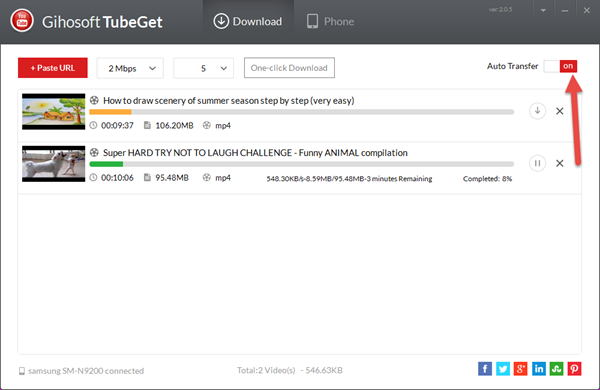
No doubt, YouTube is the biggest site that shares videos. What if you want to watch any of those videos without internet? Gihosoft TubeGet is a free App devoted to downloading and saving YouTube videos in original format. It also has an option to extract audio stream and save it as an MP3 file. This type of App can be very useful if you want to easily download tutorials, help guides or any sort of videos for your offline collection. Gihosoft TubeGet doesn’t just support YouTube but it is compatible with other websites too such as Vimeo, Facebook, Daily Motion, Instagram, and Netflix. Download this amazing software from here.

After easy installation and setup procedure, the main window of the software is launched. Go to the video you want to download to watch without internet and copy the URL. Then, run the Gihosoft software. On the main window, paste the URL of YouTube (or any other supported website) in the search box with label ‘+ Paste URL.’ Gihosoft software will identify the link and load it. After the video is identified, a pop-up window will be displayed which lets you select the preferred quality (4K, 1440P, 1080P, 720P, 480P, 360P or 240P) and format of video. The quality depends on how the video was uploaded on YouTube. Finally, click on the download button to save the video on your PC. The video can be converted to MP3, AVI, MKV, WMV, etc.


If the YouTube video is lengthy, Gihosoft TubeGet can download the file into multiple clips. The software has no difficulty persevering HD quality of videos and it does not hog system resources. It has intuitive settings, user-friendly interface, and swift operations. At once, you are allowed to download five videos. Also, you can limit the download speed too. It supports both MAC and Windows. The videos can be transferred to Android phones or iPhones in just a single click. A very nice video downloader but it does not support multiple languages. Gihosoft lets you backup and restores your media data too, in case your device gets damaged severely. The data can be restored back too from previous backups.

2018/06/16

How to Block Phone Number in iOS 11 on iPhone


iOS has feature that lets you to block contact on iPhone. There might be some people

you have in the Contacts app that you want to block that phone number for some reason. If you are new to iPhone using iOS 11, here’s a tip to block a contact in easy way.

You can also block multiple contacts/phone numbers from whom you don’t want to get any messages or calls.

Blocking contacts in iOS 11 is easy. If someone calls frequently for any reason and trying to irritate you then this blocking feature helps you a lot. But where is the option to block a contact in iOS 11? It can be little confusing to figure out blocking someone’s call in iOS 11 on an iPhone.

Follow this step to block specific contact number or call in iOS 11

How to Block Call on iPhone in iOS 11

Apple made it easy for iOS users to block contacts, text messages, FaceTime or even Phone calls on iPhone running iOS 11.

You can block contact or any specific phone number from the Contacts app or from the Contacts tab in the Phone app.

## Open Phone app on iPhone
##  Tap on Contacts tab and select any contact or phone number you want to block.
##  You will see the details of the contact.

##  Scroll down and tap on the “Block this Caller” option

##  This will now block that contact number and will not get any texts, incoming calls, and FaceTime anymore.

How to Block Multiple Contact Number in iOS 11

With the same process, you can block multiple contacts or numbers in iOS 11 on iPhone.

Similarly, if in need of that contact you can unblock that blocked phone number or contact anytime you want by going to the contact details and tap on the “Unblock this Caller”.

Similarly, you can block any phone number directly from the recent tab of the Phone app.

##  Just find any contact in the “recent tab”
## Tap on the information icon ‘!’
## Scroll down and tap “Block this Caller” and then tap Block Contact to “confirm”.

How to Block Phone number in iOS 11 on iPhone that is not added in your Contact

Sometime you get a call from unknown number which then you want to block that contact immediately.## Open Contacts app

## Tab the Recent tab

## Find the phone number you want to block

## Tap on information icon

## Next scroll down and tap “Block this Caller” and then confirm to Block Contact.Gihosoft iPhone Data Recovery is a professional iPhone Data Recovery software to get back all your lost text message, photo, video, call history, note, contact and more from iPhone/iPad/iPod Touch. It offers a full solution to recover your lost data in different tough situations. Besides recovering data directly from iPhone, iPad and iPod touch, it also allows you to recover data from iCloud and iTunes backup files.


How to unblock Contacts or numbers in iOS 11 on iPhone

All of your blocked contacts or numbers are managed in list. You can find the list of block contact in iOS 11 from Settings >>> Phone.
## And then select Call Blocking & Identification.
## There you will see the list of all of your blocked contacts and numbers.
## Swipe to the left on any number or contacts from the blocked list. And then Tap Unblock.

## You will now get all the calls, text, Facetime from the number you have unblock.Likewise, you can block any contacts or phone numbers from the Call Blocking & Identification too.

## Simply tap on the Block Contact
## Select any contacts and will directly come into the blocked list.
If you find this trick is useful, please don’t forget to comment, like and share.


2018/06/15

How to Change Apple Security Questions?


How to Change Apple Security Questions?


You can easily change apple ID security questions you are using if you follow these simple steps;


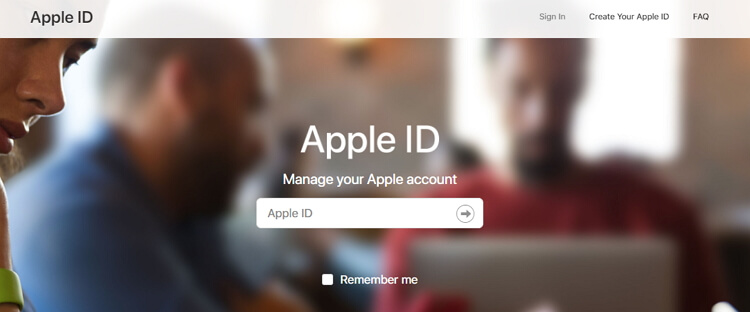
Step 1: Go to https://appleid.apple.com/ and sign in to your account.


Step 2: Click "Edit" in the security section. You may be asked to enter the current security questions you have.


Step 3: Click "Change Questions" and choose new questions.


Step 4: Add and verify an email address you will use to recover the account if lost.
2. What to Do If You Forgot the Answers to Your Apple ID Security Questions?


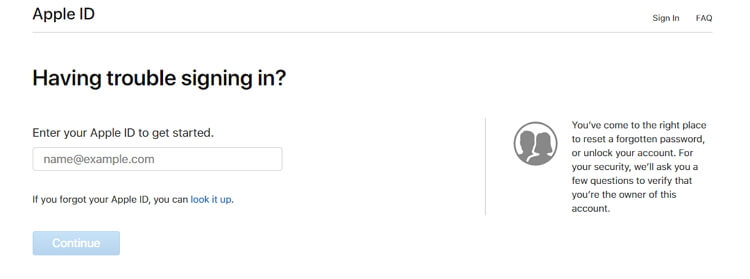
If you forgot your Apple ID security questions you can reset them at https://iforgot.apple.com/ using these simple steps.


Step 1: Go to https://iforgot.apple.com/ and enter your Apple ID. Click on "Continue".


Step 2: Click on the option to reset your security settings and then click "Continue."


Step 3: Next, you need to enter your Apple ID and password and then click on "Continue" again,


Step 4: Follow the on-screen instructions, as Apple guides you to verify your identity. If there are no options to verify your identity, you may need to reset the security questions.


Step 5: One you've verified your identity, select new security questions and answers and then click "Continue."
3. How to Reset Apple ID Security Questions without a Rescue Email?


To reset the Apple security questions, you need to have a rescue email. But if you misspelled the rescue email while you were setting up the questions, you may be unable to get a link to reset them. It is important to note that Apple has support staff that will help you with this problem. When requesting to reset your Apple ID question, click on the "If you don't have a rescue email address" link to get help from Apple Support.
Sponsor Ads:
Gihosoft iPhone Data Recovery is a professional iPhone Data Recovery software to get back all your lost text message, photo, video, call history, note, contact and more from iPhone/iPad/iPod Touch. It offers a full solution to recover your lost data in different tough situations. Besides recovering data directly from iPhone, iPad and iPod touch, it also allows you to recover data from iCloud and iTunes backup files.

2018/06/11

How to Turn off or Delete iCloud Backup


How to Turn off or Delete iCloud Backup


Now, let’s take a look at how to turn off or delete iCloud backup.


Turn off/Delete iCloud Backup on iPhone, iPad, and iPod touch


Turn off/Delete iCloud Backup on Windows 7/8/10


Turn off/Delete iCloud Backup on Mac
Turn off/Delete iCloud Backup on iPhone, iPad, and iPod touch


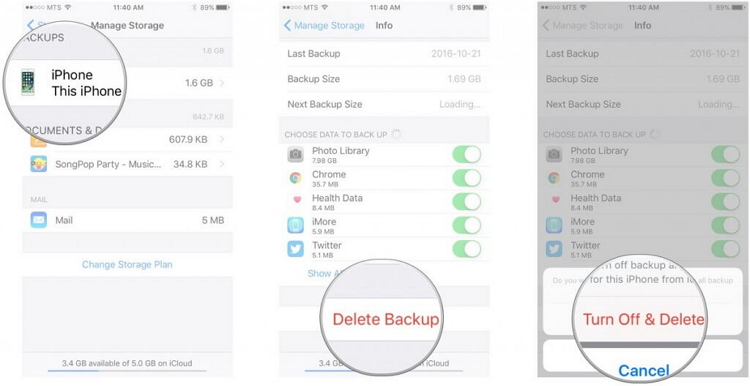
Go to “Settings” and select “General”.


Then, go to “Storage & iCloud usage”.


Tap on “Manage Storage” option located under “iCloud” option (However, when it comes to iOS 10.3 or later versions, you can access “iCloud” option directly under your profile).


Once you have entered “Manage Storage” option, you will notify the devices under your Apple ID (their iCloud backup must be turned on). If you see only one device, there are two possibilities: you have only one iOS device under the given Apple ID; you have enabled backup only for the current device.


Now, tap on the device’s name you just found under Mange Storage.


Then, go to “Delete Backup” option. You should tap “Turn Off & Delete” option to confirm your action.


Turn off/Delete iCloud Backup on Windows 7/8/10


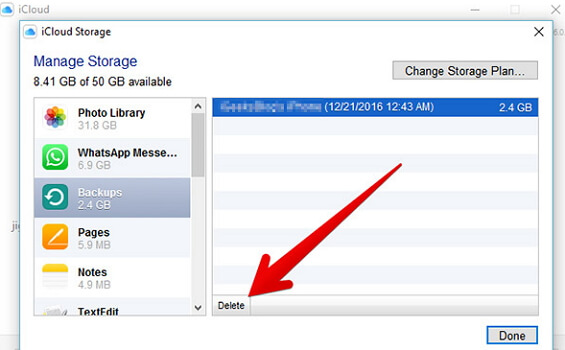
Open iCloud in your Windows PC.


Inside iCloud, you should select “Storage” option.


Under the listed items, you should select Backup option.


Now, select a device backup depending on your need and click on “Delete”. In order to remove the backups of all the devices from the iCloud under the given Apple ID, choose the “Delete” option and confirm. After deleting the backup, it will automatically turn off the device’s backup.


Turn off/Delete iCloud Backup on Mac


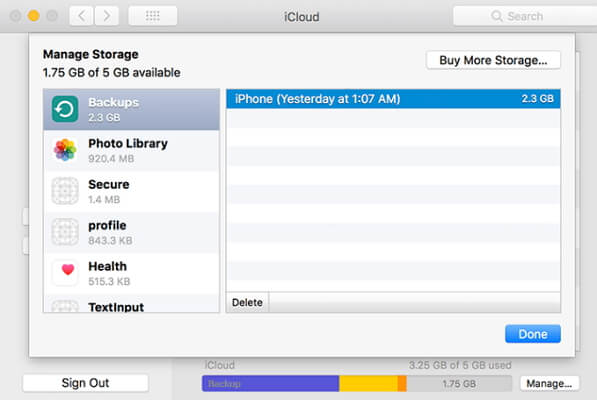
Start by going into Apple Menu and selecting System Preferences.


Then, go to iCloud .


Go to Manage and click on Backups.


Select a backup and click on Delete option. In order to remove all the backups and turn off the devices from iCloud, just choose Delete when promoted.


At the completion of this process, the backup will automatically turn off from your device.


Do you like this story?
Sponsor Ads:
Gihosoft iPhone Data Recovery is a professional iPhone Data Recovery software to get back all your lost text message, photo, video, call history, note, contact and more from iPhone/iPad/iPod Touch. It offers a full solution to recover your lost data in different tough situations. Besides recovering data directly from iPhone, iPad and iPod touch, it also allows you to recover data from iCloud and iTunes backup files.


The Best Power Supplies for 2023

  The Best Power Supplies for 2023  Here are some recommendations for the best power supplies in 2023: • Corsair RM/RMx Series - High-end 80...