2019/03/06

7 Best Driving Games For Android 2019

7 Best Driving Games For Android 2019

Don’t we all love driving? The feeling of air through your hair and the thrill you feel when you speed up, but it won’t be always possible to drive through the lanes hassle free. But you know what is the next best thing after driving? Driving Games! Driving games are a part of the action/racing genre of games. Driving games are the most loved and downloaded genre of game. A driving game is a game in which you can drive different kinds of vehicles on racing tracks or off-road. They are often racing games but they can also be simulators or level based games. These games replicate the feeling of you driving on a stretch with a double dose of adrenaline as you race through the lanes. Now you don’t need a car when you have your smartphone, just download these games and ride away. In this post, we are going to write about the Best Driving Games for Android.

Also Read:How to Download & Save Facebook Videos to Camera Roll on iPhone/iPad 2019

Also Read:How to Make a Folder Password Protected

Worth Reading: 5 Best Truck Driving Simulator Games For Android
Best Driving Games for Android:


Dr. Driving


Extreme Car Driving Simulator


Ultimate Car Driving Simulator


Car Driving School Simulator


Racing Fever: Moto


Truck Driver Cargo


City Driving 3D
1. Dr. Driving

Dr.Driving is the driving game that will surely drive you crazy. Race through the streets with the fastest and most visually stunning driving game. You can sign in the game using your Google Account and play it on multiplayer mode. Whenever you ar4e finished with the mission you will be rewarded with free gold. It is addictive and has lifelike graphics that makes you want to play it even more. There’s a reason it is downloaded by 100 million people and it is because it is the most amazing driving game out there.


Main Features:


Visually stunning.


Great graphics.


Amazing sound quality.

Download Dr. Driving
2. Extreme Car Driving Simulator

Thanks to the advanced real physics engine Extreme Car Simulator is the best car simulator game out there. If you ever wanted to try a sports car simulator then this is the place to be. You can be a furious racer on a whole city waiting for you to be explored. You can race with other rival vehicles and perform illegal stunt actions and also run full speed without thinking of the police chasing you. Burn the asphalt of this open world city.
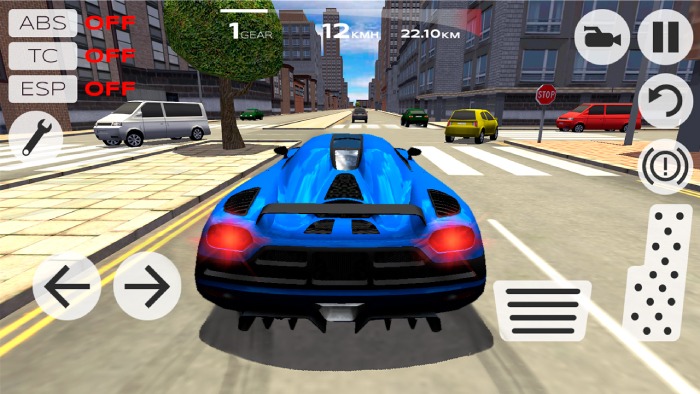

Main Features:


Mini-game checkpoint mode.


Full real HUD.


Accurate physics.


Realistic car damage.


Several different camera views.

Download Extreme Car Driving Simulator
3. Ultimate Car Driving Simulator

Ultimate Car Driving simulator is definitely the best car driving simulator game that comes with most realistic driving physics, unlimited customization, and addictive gameplay. This game combines realism and fun driving physics to create the best car driving simulator for you. from racing cars to off-road SUVs there is all kind of vehicles available. You can even create your own car and show off your style to everyone. It has all the sounds recorded from real cars to provide the strongest feeling to the player. Pick any car of your choice and do whatever you want to in a giant open world map.


Main Features:


Great Graphics.


Unlimited customization.


Best Sound and Graphics.


Real driving physics.

Download Ultimate Car Driving Simulator
4. Car Driving School Emulator

Just get behind the wheels and start your lessons in the most realistic city driving simulator around. This game will not only test your skills but also demands full attention to the traffic rules. It gives you the feel of a realistic driving school from top to end. You can select mission packs that interest you and play them. The game has realistic traffic and also 26 unique cars that you can choose from. When you are done with all the missions in the game you can play the game in multiplayer mode too. And then compete with players locally or globally.


Main Features:


Huge car collection.


100% Free to Play Missions.


Deal with Real traffic AI.


Multiple camera views.

Download Car Driving School Emulator
5. Racing Fever Moto

From the makers of Racing Fever comes another motor racing game. In this game, you will get to experience all the adrenalin, fun and excitement that driving can offer you. For a more better experience, you can play the game from your racers point of view or change it using different camera angles. With the amazing racing experience and great graphics, you won’t be able to put your phone down at all. The game is su[pported in 23 different languages and has different exciting modes for you.


Main Features:


4 different control options.


Supports 23 languages.


Daily Bonus Mode.


4 different camera angles.

Download Racing Fever
6.Truck Driver cargo

This game is for the inner truck driving goon in you. Now just download this game and become a truck driver in this exciting truck simulation game. The motive of the game is to deliver the cargo in your truck to its destination. It is very interesting to play this game and has great graphics and easy controls. Go through the landscape and deliver the cargo that you have to.


Main Features:


Easy to learn difficult to master.


Great graphics.


Amazing sound quality.

Download Truck Driver cargo
7. City Driving 3D

City Driving 3D is the perfect game for the adrenaline junkie. It has been downloaded by over 250 million people and now has a 43d update which only makes it better. The Brand new Traffic Racer missions are ready for you to swoop through. The game has realistic car driving and also realistic traffic system that feels like you are driving a real car in real traffic. With amazing missions that need to be completed this game has over 11 modes to choose from. Experience driving right in your hands without the hassle of going anywhere else. Just Sit, Drive and Explore.


Main Features:


Realistic city car driving.


Realistic traffic system.


11 game modes.


More than 15 languages support.


World Rankings.

Download City Driving 3D

This was our list of Best Driving Games for Android that you can download for free. These games can replicate the thrill and feel of real-life driver experiences. They are best for the days when you need the rush of driving without having to actually leave the comfort of your home. They are easy and fun to play, just download and become the racer that you always aspired to be.Also Read:jihosoft Free iPhone Data Recovery

Sponsor ads:

Gihosoft Free iPhone Data Recovery:https://www.gihosoft.com/iphone-data-recovery-free.html

Gihosoft iPhone Data Recovery Free

Free iPhone Data Recovery Software for Windows/Mac

Recover up to 12+ types of files, including contacts, SMS, photos, WhatsApp, Viber, notes, etc.

Restore lost data from iOS devices directly or from iTunes and iCloud backup

Recover iPhone data lost due to iOS upgrade/jailbreak, accidental deletion, device lost or broken

Support all the latest iPhone, iPad and iPod Touch

Both Free and Pro version.

If you lost data after you updated to a new iPhone, you can always use Gihosoft iPhone Data Recovery to get the data back from the old iPhone or backup.You may also like: iphonerecovery.com

If you use android phones, please choose Gihosoft Android Data Recovery.

With Gihosoft Android Data Recovery, no longer afraid of data loss!

Must read:Youtube video downloader for pc

Gihosoft RePicvid Free Photo Recovery Software provides a free photo recovery software for windows to help users recover the deleted or lost photo for free.

Jihosoft Android Data Recovery: the best Android Data Recovery software for Windows and Mac to recover deleted contacts, messages, photos, videos, WhatsApp and etc from Android devices.Tips:How to transfer messages from iPhone to iPhone

2019/03/03

How to Delete Backup Data from iCloud on iPhone 2019

iCloud is one of the backup options offered by Apple itself. By having a backup on iCloud, you will keep your data safe. However, sometimes your iCloud storage may be full and you need to store more data. Also, you may have some private data on iCloud and you may want to protect your privacy. In both cases, the best solution is to delete iCloud backup. If for these reasons you are thinking of deleting backup data from iCloud, this article will show you how.
  • Part 1: How to Delete Backup Data from iCloud on iPhone
  • Part 2: How to Delete Backup Data from iCloud On Mac
  • Part 3: Is It OK to Delete Backup from iCloud?
  • Part 4: When Do You Need to Delete Backup Data from iCloud

Part 1. How to Delete Backup Data from iCloud on iPhone

Deleting backup data from iCloud on iPhone is a straightforward process. The following steps should help you do this:
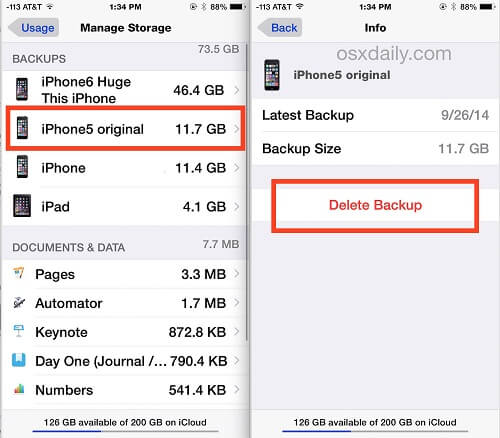
Step 1: Open the Settings app and then tap Apple ID.
Step 2: Tap iCloud and then Manage Storage.
Step 3: Click Backup and then click the iPhone/iPad whose backup you want to delete.
Step 4: Scroll down and tap Delete Backup at the bottom. Click Turn Off & Delete.
delete icloud backup

Part 2. How to Delete Backup Data from iCloud On Mac

Deleting backup data from iCloud on iPhone is a straightforward process. The following steps should help you do this:
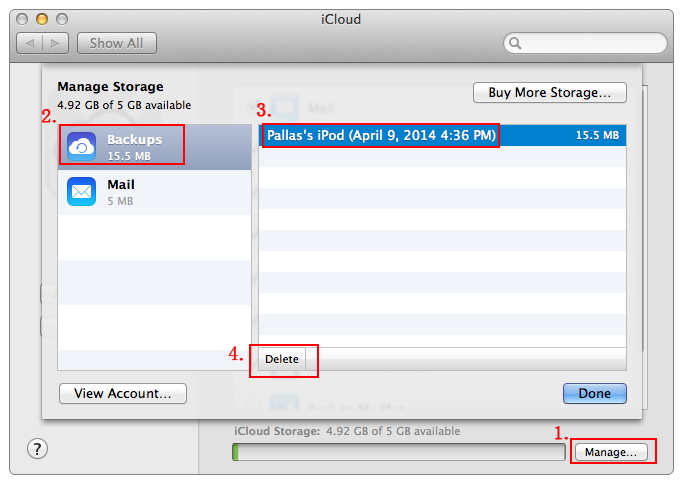
Step 1: Click Apple Menu and then select System Preferences.
Step 2: Tap iCloud and if prompted, use your Apple ID and password to sign in.
Step 3: In the lower-left corner, Click Manage…
Step 4: Tap Backups and then tap the backup you wish to delete.
Step 5: Tap Delete and then tap Delete again on the confirmation box that appears. Finally, tap done. Repeat steps 4 and 5 to delete other backup files.
delete icloud backup on mac

Part 3. Is It OK to Delete Backup from iCloud?

Deleting backup data from iCloud is OK. Even after deleting the data you have on iCloud, you will still have your data on your iPhone. However, it is important to note that if you only rely on iCloud to back up your data, you will lose the backup. Therefore, it is essential to make sure that you are deleting the backup for the right reasons. But, what are these reasons? Find out below.

Part 4. When Do You Need to Delete Backup Data from iCloud

There are several situations in which deleting backup data from iCloud may be a valid choice. These include:

Also Read:Best 6 Photo Organizer – Photo Organizing Software for Windows & Mac

Also Read:10 Best Free Audiobook Apps for Your iPhone or iPad in 2019

Also Read:How to Fix Insufficient Storage Available Problem on Android

Also Read:How to Recover Deleted Contacts with Gmail Account on Android

A. When iCloud Storage Is Full

iCloud will offer you fixed storage space depending on the plan you select. If you end up using all the allocated space, you won’t have the ability to back up more files not unless you first free up some space. In such a case, deleting backup data from iCloud will be a valid choice.
Sponsor ads:
Gihosoft iPhone Data Recovery Free
Free iPhone Data Recovery Software for Windows/Mac
Recover up to 12+ types of files, including contacts, SMS, photos, WhatsApp, Viber, notes, etc.
Restore lost data from iOS devices directly or from iTunes and iCloud backup
Recover iPhone data lost due to iOS upgrade/jailbreak, accidental deletion, device lost or broken
Support all the latest iPhone, iPad and iPod Touch
Both Free and Pro version.
If you lost data after you updated to a new iPhone, you can always use Gihosoft iPhone Data Recovery to get the data back from the old iPhone or backup.You may also like: iphonerecovery.com
If you use android phones, please choose Gihosoft Android Data Recovery.
With Gihosoft Android Data Recovery, no longer afraid of data loss!
Gihosoft RePicvid Free Photo Recovery Software provides a free photo recovery software for windows to help users recover the deleted or lost photo for free.
Jihosoft Android Data Recovery: the best Android Data Recovery software for Windows and Mac to recover deleted contacts, messages, photos, videos, WhatsApp and etc from Android devices.Tips:How to transfer messages from iPhone to iPhone
2019/03/01

How to Wipe iPhone with iTunes, Recoverable


How to Wipe iPhone with iTunes, Recoverable

It’s not hard to erase iPhone through iTunes, but it’s not safe enough especially when you want to sell or donate it. You have to remember that though you would be able to erase iPhone from iTunes, with a recovery tool or the other, you can still recover the data.

Step 1: Open the iTunes application on your computer and connect the iPhone to your computer.Leer más:G2a sitio

Step 2: Click on your iPhone’s icon on the iTunes and open the Summary tab.


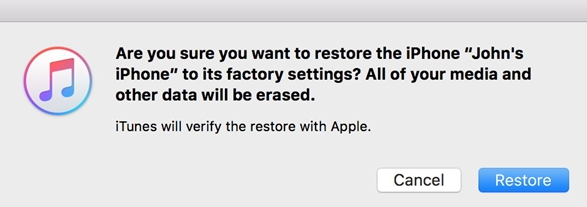
Step 3: Click on “Restore iPhone”.


Step 4: Click on “Restore” again. iTunes will begin erasing your iPhone and installing the newest iOS.


Step 5: Once the process is complete, iPhone will restart. You can set it up as new.

Note: Some private data is not gone forever after restoring. It's easy to use recovery tool to access and retrieve previous data as the data is not removed from the device drive. Except that iTunes is not safe to restore iPhone, it’s very easy to run into iTunes errors which are always hard to get rid of.
What Error May Come While Restoring iPhone with iTunes

Yes, it’s easy to wipe iPhone with iTunes, but iTunes errors will make it super hard to go ahead. The most common errors may come when you try to restore is “This iPhone could not be restore. An unknown error occurred”. The error codes could be 9, 14, 2001, 2005, 2009, 4005, 4013, 4014, etc.

Apple says the reason my be your iPhone disconnects, or iTunes couldn’t tell your iPhone to restore, but always that is not the reason. Actually, it’s much more complicated than that. If you would like to try something, you can refer to this guide.Sponsor ads:

Gihosoft Free iPhone Data Recovery:https://www.gihosoft.com/iphone-data-recovery-free.html

Gihosoft iPhone Data Recovery Free

Free iPhone Data Recovery Software for Windows/Mac

Recover up to 12+ types of files, including contacts, SMS, photos, WhatsApp, Viber, notes, etc.

Restore lost data from iOS devices directly or from iTunes and iCloud backup

Recover iPhone data lost due to iOS upgrade/jailbreak, accidental deletion, device lost or broken

Support all the latest iPhone, iPad and iPod Touch

Both Free and Pro version.

If you lost data after you updated to a new iPhone, you can always use Gihosoft iPhone Data Recovery to get the data back from the old iPhone or backup.You may also like: iphonerecovery.com

If you use android phones, please choose Gihosoft Android Data Recovery.

With Gihosoft Android Data Recovery, no longer afraid of data loss!

Must read:Youtube video downloader for pc

Gihosoft RePicvid Free Photo Recovery Software provides a free photo recovery software for windows to help users recover the deleted or lost photo for free.

Jihosoft Android Data Recovery: the best Android Data Recovery software for Windows and Mac to recover deleted contacts, messages, photos, videos, WhatsApp and etc from Android devices.Tips:How to transfer messages from iPhone to iPhone

jihosoft Free iPhone Data Recovery

2019/02/27

How to Fix Facebook Messenger Not Working on Apple Watch Series 1/2/3?


We've recently received complaints from users who have been experiencing issues using Messenger, WeChat, Line, WhatsApp or SMS on the Apple Watch. These complaints can range from an app crashing during use or after an iOS 12 update, messages nor loading or even the inability to send and receive messages.

In this article, we take a look at the various problems users have experienced with Facebook Messenger on the Apple Watch and how to fix them. But first, let's see how to use Facebook Messenger on the Apple Watch.
How to Use Facebook Messenger on Apple Watch

To begin using Facebook Messenger on the Apple Watch, you need to install the app on the watch. The following is how you can do that:

Step 1: Begin by downloading the Facebook Messenger app on your iPhone and make sure it is the latest version.

Step 2: Now open the Apple Watch paired with that iPhone and then browse to the "My Watch" Tab.

Step 3: Scroll down to find the list of third-party apps. Tap on Messenger.

Step 4: Toggle "Show App on Apple Watch" to on and wait while the software is uploaded to the watch.

With WatchOS 2, you now have more options. Previously, users could only receive a notification when they had a new message with only the "Dismiss" option available. Now, there are more options. You can choose to "Reply" and have the option to send a voice message, thumbs up icon, your location or a predefined sticker. You can also choose the "Like" option or the "Mute" option that silences the notifications.
Top 3 Messenger App Problems on the Apple Watch

The following are just some of the major problems users have reported with the Messenger app on the Apple Watch:
1. Messenger Not Loading

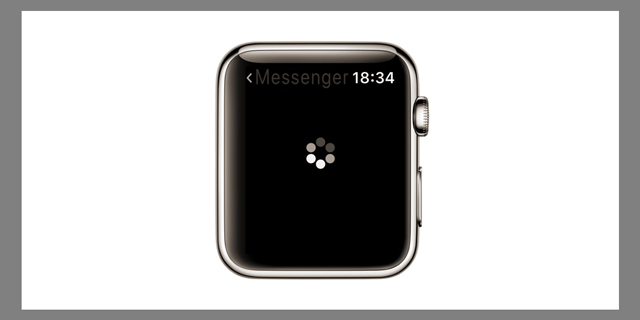
Sometimes even after installing the app correctly, the Messenger app can fail to load on the Apple watch. Instead of loading, you get a black screen with a loading wheel on it. The cause of this problem is unknown but it is a common one that can be fixed by resetting the Apple Watch among other solutions we'll see shortly.


2. Messenger Won't Open

Another common problem users report is the Messenger app failing to open even if it has been installed properly. Resetting or uninstalling the app doesn't work to fix it although updating the iOS on both the Watch and the paired iPhone can work.
3. Messenger Suddenly Crashes

There are also some users who have reported that the app seems to work just fine and then suddenly crashes, displaying the "loading" wheel before closing. This is another problem whose cause is yet to be determined but one of the solutions we'll provide in the next section should work.
5 Methods to Fix Messenger App Not Working on Apple Watch

The following are some of the troubleshooting processes to try if you are having trouble with Messenger on the Apple Watch.
Method 1: Restart and Force Restart Your Watch

A restart is often the first solution you should try. It is easy to do and doesn't interfere with any of the Watch's functions. Follow these simple steps to restart your Watch:

Step 1: If the Watch is charging, unplug it from the charger (you can't restart it if it's charging.)

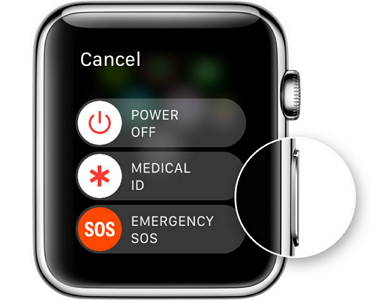
Step 2: Now press and hold the side button and slide to power off.

Step 3: Then press and hold the side button again until the Apple Logo appears on the screen.


If a restart doesn't do it, a force restart is the next best thing. Here's how to force restart your Watch:

Step 1: Hold down the side button and the Digital Crown at the same time until you see the Apple Logo.

Step 2: Release both buttons and the Watch will restart.


Method 2: Delete and then Reinstall Messenger App on iPhone

You can also try to delete and then reinstall the Messenger app on the iPhone.

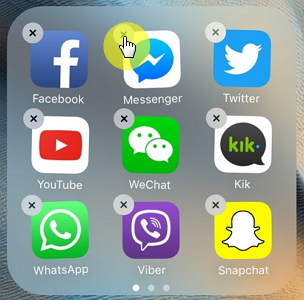
To delete the apps, locate them on the home screen. Tap and hold the app until it wiggles a bit and an "X" appears.

Tap on the "X" and the app will be deleted.

Before deleting the Apple Watch App however, un-pair it to avoid pairing issues.

You can then reinstall both apps, pair the devices and set up Messenger on the Apple Watch like we discussed above.


Method 3: Update Both iOS and WatchOS

Updating both the iOS (to iOS 12) and WatchOS, can also help fix any one of the above messenger issues.

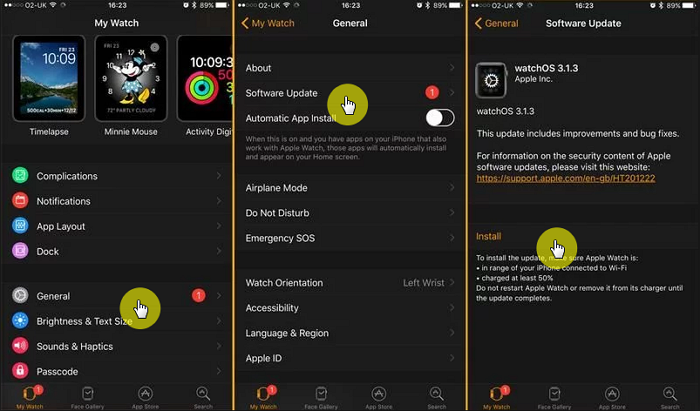
For the iPhone go to Settings > General > Software update. If there is an update, select it to install it.

For the Watch, you need to plug in to a charger before you start the update and make sure it is charging throughout the process. Then go to the Apple Watch app on the paired iPhone and tap General > Software Update and install the updated WatchOS available.


Method 4: Change the Default Reply on Facebook Messenger

Changing the default reply on Facebook Messenger can also help to fix this problem. Here's how to do it:

Step 1: On both your phone and the Watch, open Facebook Messenger.

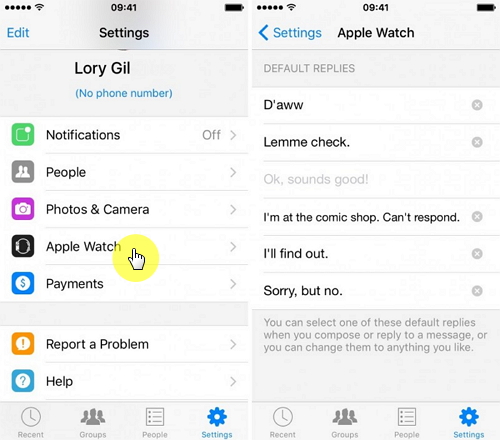
Step 2: Tap on your profile picture and then select "Apple Watch."

Step 3: Tap on the default replies section and type in a new one. Tap on the "Me" button to save the new reply.

Step 4: Now close the Messenger app by double tapping the home button and then swiping it up and off the screen.

If this doesn't work, try deleting the default reply.Sponsor ads:Transfer Calendar from Android to Android
Sponsor ads:6 Best Running Apps For iPhone & Apple Watch to Keep Your Fitness
Sponsor ads:10 Best Game Download Sites for PC & Android


Method 5: Fix iOS

Since the app issues on Apple Watch could be caused by the issues on your iPhone, a particularly viable solution to this problem is to use a third-party tool to fix the iOS on you iPhone. One of the best tools for this task is iMyFone iOS System Recovery (iOS 12 supported) and its advanced mode is useful for this purpose. Download and install iMyFone iOS System Recovery and then follow these simple steps to fix the problem:

Photo Stream Not Working on iPhone, How to Fix It?


“About 3 weeks ago my iPhone X stopped sending photos to my MacBook pro via photo stream, they are no longer appearing on my MacBook. Are there any simple guides on here to check that my settings are correct please?Thanks.”

My photo stream is one of the profusely used tools as it enables users to automatically upload their new photos and send them to all of the connected Apple devices which are signed to the same iCloud account.

Sometimes, you may not be able to see the ‘My photo stream’ disappears on the device and at times the photos you click are not visible on concurrent Apple devices. Here, in this article, we are going to list the different ways by which you can handle this issue in the right way.


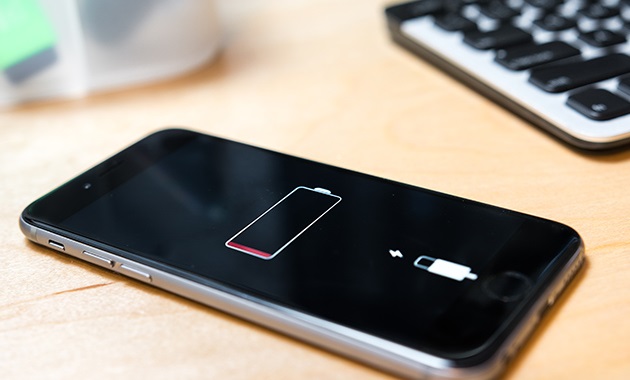
Tip 1. Check battery power


Tip 2. Enable My Photo Stream on iPhone/iPad


Tip 3. Close camera app


Tip 4. Reconnect to Wi-Fi


Tip 5. Professional way to fix this bug with a reliable tool
Tip 1. Check battery power

Ideally, Apple developers themselves say that for photo stream to work seamlessly, you must have a battery percentage above 20%. So, always charge your phone and have a good solid Wi-Fi network running for the photo stream to work seamlessly.


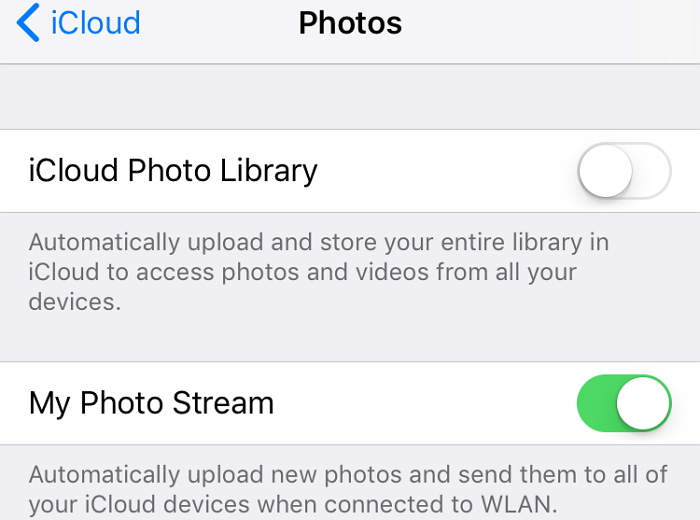
Tip 2. Enable My Photo Stream on iPhone/iPad

This is really important whenever you want to ensure that you can have your photos synced between multiple Apple devices. After you upgrade to iOS 11, some settings may change so we will manually take a look.

For iCloud, head to ‘Settings’ and then tap on ‘iCloud’. Now you need to scroll down and then tap on ‘My photo stream’ to turn it on.

Now in your phone, head to ‘Settings’ and then scroll down and tap on ‘Photos’. Now turn on ‘My photo stream’ if it has been closed.


Tip 3. Close camera app

If the camera app is open, it is going to impact the way you use the photo stream sync. The concept behind working of photo stream is that when the camera app is close, the photos get synced to the photo stream and is then available on all devices.

So, after you are done clicking, make sure to exit the camera app and give the photo stream a few minutes before the sync is done.
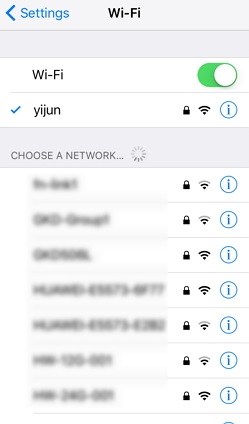
Tip 4. Reconnect to Wi-Fi

If either of the devices seems to have an unstable Wi-Fi network, the photo stream may not work properly. So, you need to first turn off the Wi-Fi connection and then connect it back after 30 seconds. Here is how to do it.

Head to ‘Settings’ and then ‘Wi-Fi’. Now, from the list of available network, see the one you are connected to. Click on the ‘i’ icon beside it and then tap on ‘Forget this network’. Wait for some time.

Now go to ‘Settings’ and then ‘Wi-Fi’ again and choose either a different or the same network. When prompted for password, enter that and re-connect.


Tip 5. Professional way to fix this bug with a reliable tool

If none of the steps above seem to be working, you need to find out the best way to fix this bug by using a reliable tool. It is iMyFone iOS System Recovery which sees to be one of the best software for this purpose. It is a smartly designed software that comes packed with excellent features. It can fix different kinds of iOS issues, such as Apple logo, recovery mode, black screen of death. It is also highly recommended by a great many experts and users.

It is worth mentioning that your data will not be erased if you fix the bug using the Standard mode of this program. All of the existed photos, videos, contacts, messages, and other data will not be affected after installing the latest version on your device.Sponsor ads:

Gihosoft Free iPhone Data Recovery:https://www.gihosoft.com/iphone-data-recovery-free.html

Gihosoft iPhone Data Recovery Free

Free iPhone Data Recovery Software for Windows/Mac

Recover up to 12+ types of files, including contacts, SMS, photos, WhatsApp, Viber, notes, etc.

Restore lost data from iOS devices directly or from iTunes and iCloud backup

Recover iPhone data lost due to iOS upgrade/jailbreak, accidental deletion, device lost or broken

Support all the latest iPhone, iPad and iPod Touch

Both Free and Pro version.

If you lost data after you updated to a new iPhone, you can always use Gihosoft iPhone Data Recovery to get the data back from the old iPhone or backup.You may also like: iphonerecovery.com

If you use android phones, please choose Gihosoft Android Data Recovery.

With Gihosoft Android Data Recovery, no longer afraid of data loss!

Must read:Youtube video downloader for pc

Gihosoft RePicvid Free Photo Recovery Software provides a free photo recovery software for windows to help users recover the deleted or lost photo for free.

Jihosoft Android Data Recovery: the best Android Data Recovery software for Windows and Mac to recover deleted contacts, messages, photos, videos, WhatsApp and etc from Android devices.Tips:How to transfer messages from iPhone to iPhone

jihosoft Free iPhone Data Recovery

iFunbox Review: Pros and Cons


iFunbox Review: Pros and Cons
What is iFunbox?

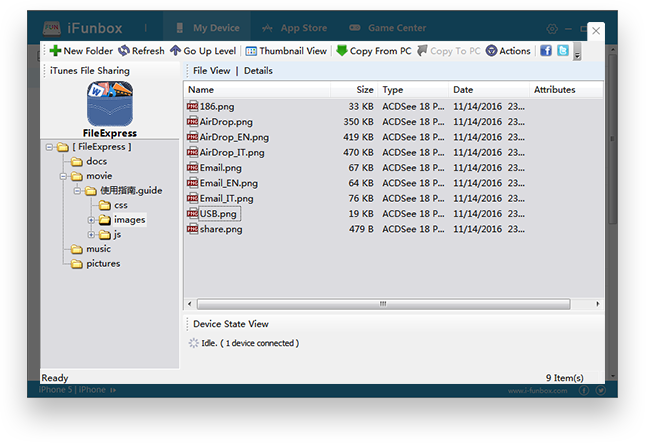
iFunbox is a file management tool designed for iDevices. It is quite popular as it is being used by many iPhone/iPad users nowadays. If you are using this software on your Windows PC, then iFunbox will allow you to manage your iPhone iOS 12/11/10 media files just like using Windows File Explorer. iFunbox transforms your connected iDevice into a portable hard drive and makes it easier for you to transfer and manage your photos, music, videos, etc. conveniently.


Following are some prominent features of iFunbox:

Pros


Transfer and manage your iPhone media files on your computer just like Windows File Explorer but with a lot more convenience.


iFunbox will transform your iPhone into a USB portable hard disk so you will be able to easily use it for managing general files.


File transfer speeds are pretty good, considering your iDevice would work as a portable hard disk on your computer.


Easily export music and videos from your iTunes library to your PC as a backup. Furthermore, you can also use it to burn your iPhone media to a CD.


iFunbox allows you to manage your iPhone media files even when iTunes is refusing to connect.


View all installed apps on your connected iDevice. Furthermore, it’s batch install/uninstall feature makes it easier for you to manage your iOS apps and save you time and efforts.

Following are some cons of iFunbox:

Cons


Sometimes iFunbox cannot connect to iTunes library for some unknown reasons.


Some users have also reported facing permission issues with this software.


iFunbox is not a wise choice for users who simply want to transfer music between their iDevice and computer because of its multiple, complex features and interface. This software is recommended for those who have a jailbroken iDevice.

Sponsor ads:

Gihosoft Free iPhone Data Recovery:https://www.gihosoft.com/iphone-data-recovery-free.html

Gihosoft iPhone Data Recovery Free

Free iPhone Data Recovery Software for Windows/Mac

Recover up to 12+ types of files, including contacts, SMS, photos, WhatsApp, Viber, notes, etc.

Restore lost data from iOS devices directly or from iTunes and iCloud backup

Recover iPhone data lost due to iOS upgrade/jailbreak, accidental deletion, device lost or broken

Support all the latest iPhone, iPad and iPod Touch

Both Free and Pro version.

If you lost data after you updated to a new iPhone, you can always use Gihosoft iPhone Data Recovery to get the data back from the old iPhone or backup.You may also like: iphonerecovery.com

If you use android phones, please choose Gihosoft Android Data Recovery.

With Gihosoft Android Data Recovery, no longer afraid of data loss!

Must read:Youtube video downloader for pc

Gihosoft RePicvid Free Photo Recovery Software provides a free photo recovery software for windows to help users recover the deleted or lost photo for free.

Jihosoft Android Data Recovery: the best Android Data Recovery software for Windows and Mac to recover deleted contacts, messages, photos, videos, WhatsApp and etc from Android devices.Tips:How to transfer messages from iPhone to iPhone
jihosoft Free iPhone Data Recovery

Clear Both Safari History and Website Data


1 Clear Both Safari History and Website Data

If you want to clear both history and website data of Safari, then follow these simple steps:

Step 1. Launch Settings app on your iPhone.

Step 2. Find and tap Safari.

Step 3. Now in the Safari section, select Clear History and Website Data option.

Step 4. Then tap on Clear History and Data when prompted to confirm your action. It will remove safari history, cookies, and other browsing data.


2 Delete Safari Website Data Individually

If you want to keep your browsing history and only wish to clear website data in safari, then it can be achieved via the following steps:

Step 1. Launch Settings app on your iPhone and navigate to Safari > Advanced.

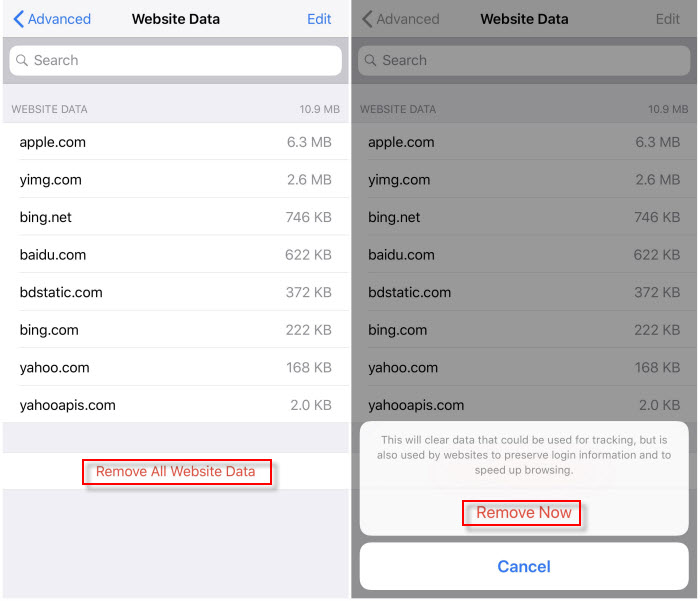
Step 2. Once there, find and tap on Website data option.

Step 3. Here you have two options; either clear all your website data or clear it selectively.

To clear all of it, select the Remove All Website Data option. It will clear data that could be used for tracking.


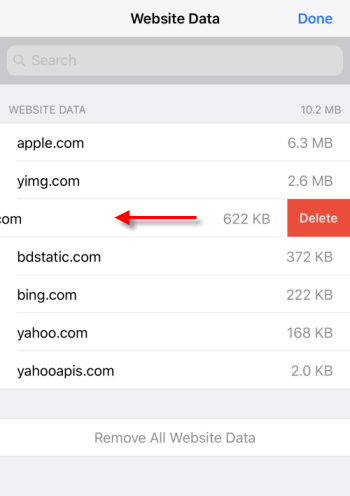
And if you want to clear the website data selectively, then simply swipe left and right and choose what you wish to delete. You will need to tap on Delete button to get rid of that specific data you have selected.


3 Clear History and Website Data with Safari Itself

You can clear both history and website data from the Safari browser itself. The method to do this is quite easy. Follow these instructions:

Step 1. Launch Safari browser on your iPhone.

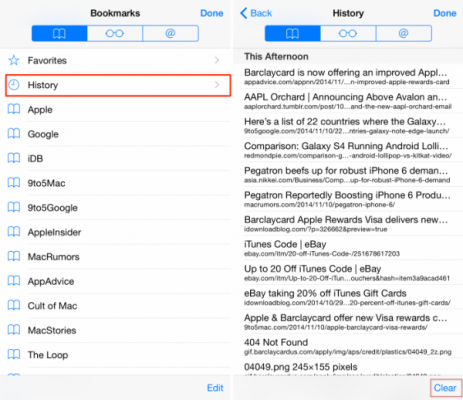
Step 2. Select the bookmark icon shown at the bottom.

Step 3. Now select bookmark tab and then tap on History.

Step 4. Once the History page is opened, tap on Clear button located at the bottom right corner of the page.


Now you can clear your history and website data of various time frames including The last hour, Today, as well as All time.

Note

The major downside of clearing Safari history the ordinary way is that the data is not permanently erased, which means it can be easily found/recovered by a third-party app/software.Sponsor ads:

Gihosoft Free iPhone Data Recovery:https://www.gihosoft.com/iphone-data-recovery-free.html

Gihosoft iPhone Data Recovery Free

Free iPhone Data Recovery Software for Windows/Mac

Recover up to 12+ types of files, including contacts, SMS, photos, WhatsApp, Viber, notes, etc.

Restore lost data from iOS devices directly or from iTunes and iCloud backup

Recover iPhone data lost due to iOS upgrade/jailbreak, accidental deletion, device lost or broken

Support all the latest iPhone, iPad and iPod Touch

Both Free and Pro version.

If you lost data after you updated to a new iPhone, you can always use Gihosoft iPhone Data Recovery to get the data back from the old iPhone or backup.You may also like: iphonerecovery.com

If you use android phones, please choose Gihosoft Android Data Recovery.

With Gihosoft Android Data Recovery, no longer afraid of data loss!

Must read:Youtube video downloader for pc

Gihosoft RePicvid Free Photo Recovery Software provides a free photo recovery software for windows to help users recover the deleted or lost photo for free.

Jihosoft Android Data Recovery: the best Android Data Recovery software for Windows and Mac to recover deleted contacts, messages, photos, videos, WhatsApp and etc from Android devices.Tips:How to transfer messages from iPhone to iPhone
jihosoft Free iPhone Data Recovery

The Best Power Supplies for 2023

  The Best Power Supplies for 2023  Here are some recommendations for the best power supplies in 2023: • Corsair RM/RMx Series - High-end 80...